> ## Documentation Index
> Fetch the complete documentation index at: https://docs.dakora.io/llms.txt
> Use this file to discover all available pages before exploring further.
# Project Budgets
> Control LLM spending with monthly budgets and real-time alerts
## Overview
Dakora's budget feature helps you maintain control over LLM costs. Set spending limits at the project level, receive proactive alerts, and enforce budget caps to prevent overspending.
## Key Capabilities
Set hard or soft spending limits per project
Get notified before reaching budget thresholds
Choose between alert-only or hard budget blocks
Separate budgets for dev, staging, and production
## Setting Up Budgets
### Configure in Studio
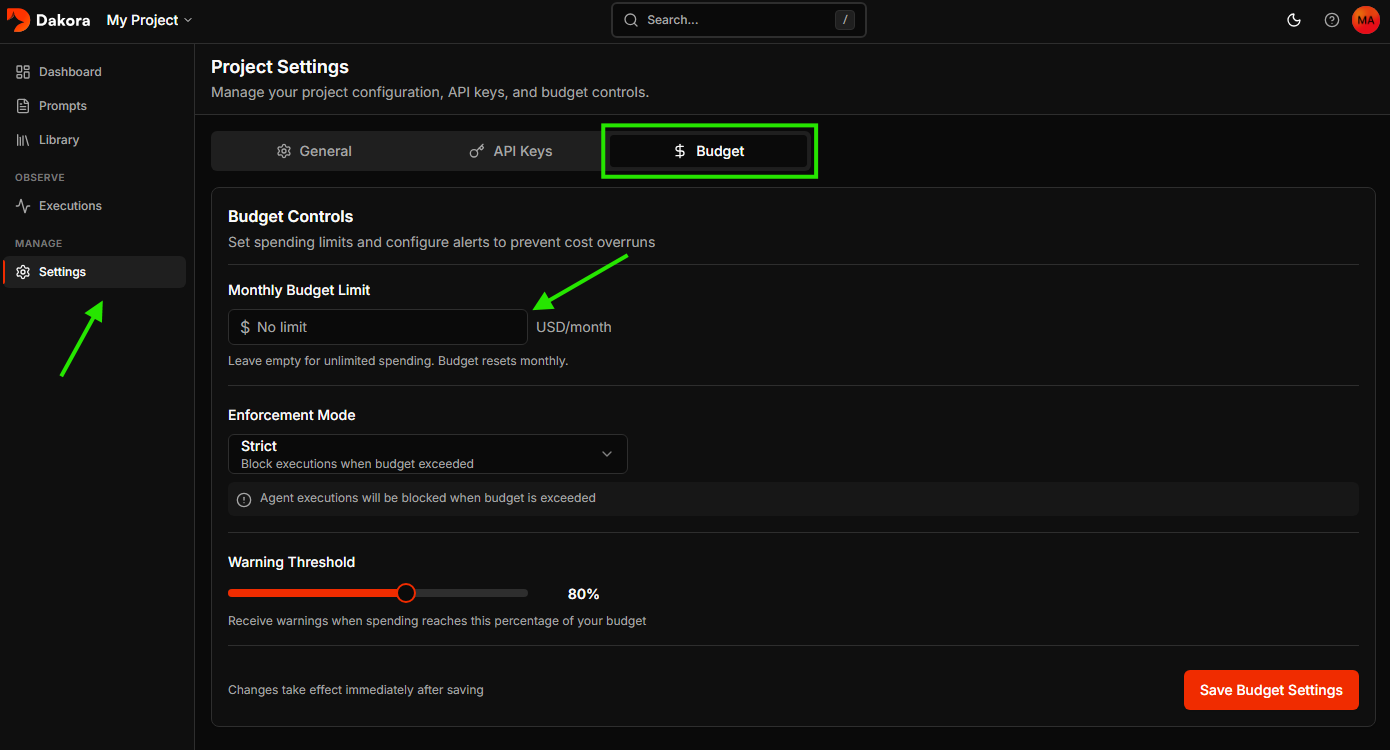
1. Navigate to **Settings > Budget**
2. Set your monthly budget limit in USD
3. Configure alert thresholds (e.g., notify at 80%)
4. Choose enforcement mode: alert-only or hard limit
 ### Budget Configuration Options
| Setting | Description |
| ---------------- | -------------------------------------------------- |
| Monthly Budget | Maximum USD spend per month |
| Alert Threshold | Percentage at which to send alerts (e.g., 80%) |
| Enforcement Mode | `alert` (notify only) or `block` (stop executions) |
## Budget Alerts & Enforcement
### Alert System
When spending approaches your configured threshold:
1. **Email notification** sent to project owners
2. **Dashboard warning** displayed in Studio
3. **API response** includes budget status in metadata
### Enforcement Modes
**Alert-only mode**: Continue executions but send notifications
**Block mode**: Reject new execution requests once budget is exceeded
```json theme={null}
{
"error": "Budget exceeded",
"details": {
"budget_limit": 100.00,
"current_spend": 102.45,
"enforcement_mode": "block"
}
}
```
## Best Practices
Begin with alert-only enforcement to understand your spending patterns
before enabling hard limits that could disrupt service.
Configure alerts at 50% and 80% to give yourself adequate time to react
before hitting the budget limit.
Create separate projects for development, staging, and production
with appropriate budget limits for each environment.
## Next Steps
Track execution logs and traces
Optimize your prompts for efficiency
### Budget Configuration Options
| Setting | Description |
| ---------------- | -------------------------------------------------- |
| Monthly Budget | Maximum USD spend per month |
| Alert Threshold | Percentage at which to send alerts (e.g., 80%) |
| Enforcement Mode | `alert` (notify only) or `block` (stop executions) |
## Budget Alerts & Enforcement
### Alert System
When spending approaches your configured threshold:
1. **Email notification** sent to project owners
2. **Dashboard warning** displayed in Studio
3. **API response** includes budget status in metadata
### Enforcement Modes
**Alert-only mode**: Continue executions but send notifications
**Block mode**: Reject new execution requests once budget is exceeded
```json theme={null}
{
"error": "Budget exceeded",
"details": {
"budget_limit": 100.00,
"current_spend": 102.45,
"enforcement_mode": "block"
}
}
```
## Best Practices
Begin with alert-only enforcement to understand your spending patterns
before enabling hard limits that could disrupt service.
Configure alerts at 50% and 80% to give yourself adequate time to react
before hitting the budget limit.
Create separate projects for development, staging, and production
with appropriate budget limits for each environment.
## Next Steps
Track execution logs and traces
Optimize your prompts for efficiency