> ## Documentation Index
> Fetch the complete documentation index at: https://docs.dakora.io/llms.txt
> Use this file to discover all available pages before exploring further.
# Studio
> Build, version, and manage prompts in the Dakora web interface. Track executions, analyze costs, and optimize your AI operations.
## Overview
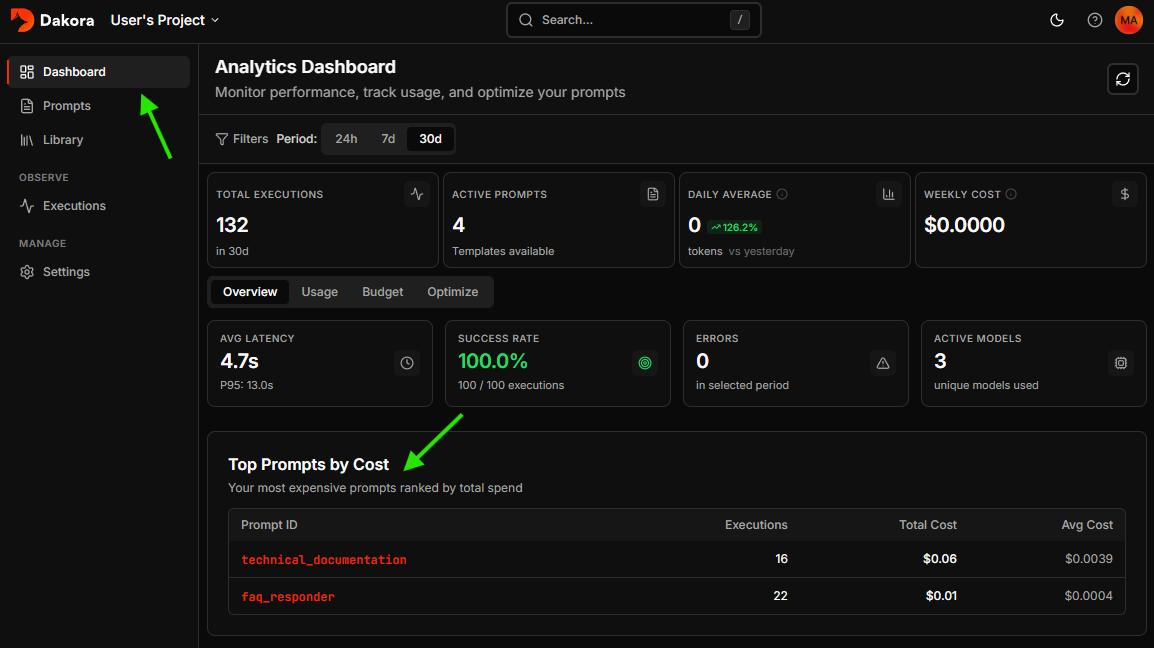
[Dakora Studio](https://playground.dakora.io) is the central hub for managing your AI operations. Build and version prompt templates, track every LLM execution with detailed analytics, monitor costs in real-time, and set budget controls - all without touching your codebase.
Studio gives you complete visibility into token usage, latency, and spending across models and prompts. Update templates in the visual editor and deploy instantly via the SDK. Identify optimization opportunities with cost breakdowns and execution traces.
 ## Core Features
Create and version prompt templates with input schemas, Jinja2 syntax, and live preview. Roll back to any previous version instantly.
Build reusable snippets for system prompts, safety guidelines, and output formats. Include them in templates with `{% include 'part_id' %}`.
Monitor costs, token usage, and performance metrics. View trends over 24h, 7d, or 30d with interactive charts.
Inspect every LLM call with full conversation history, token counts, latency, and cost breakdown.
## Getting Started
1. Access [Dakora Studio](https://playground.dakora.io) and **Sign in** or **Sign up**
2. **Select a workspace and project** (defaults provision automatically on first sign-in)
3. **Explore sample templates** - your first project includes examples demonstrating best practices
Sample templates show input schemas, parts includes, and common patterns. Use them as starting points.
## Template Editor
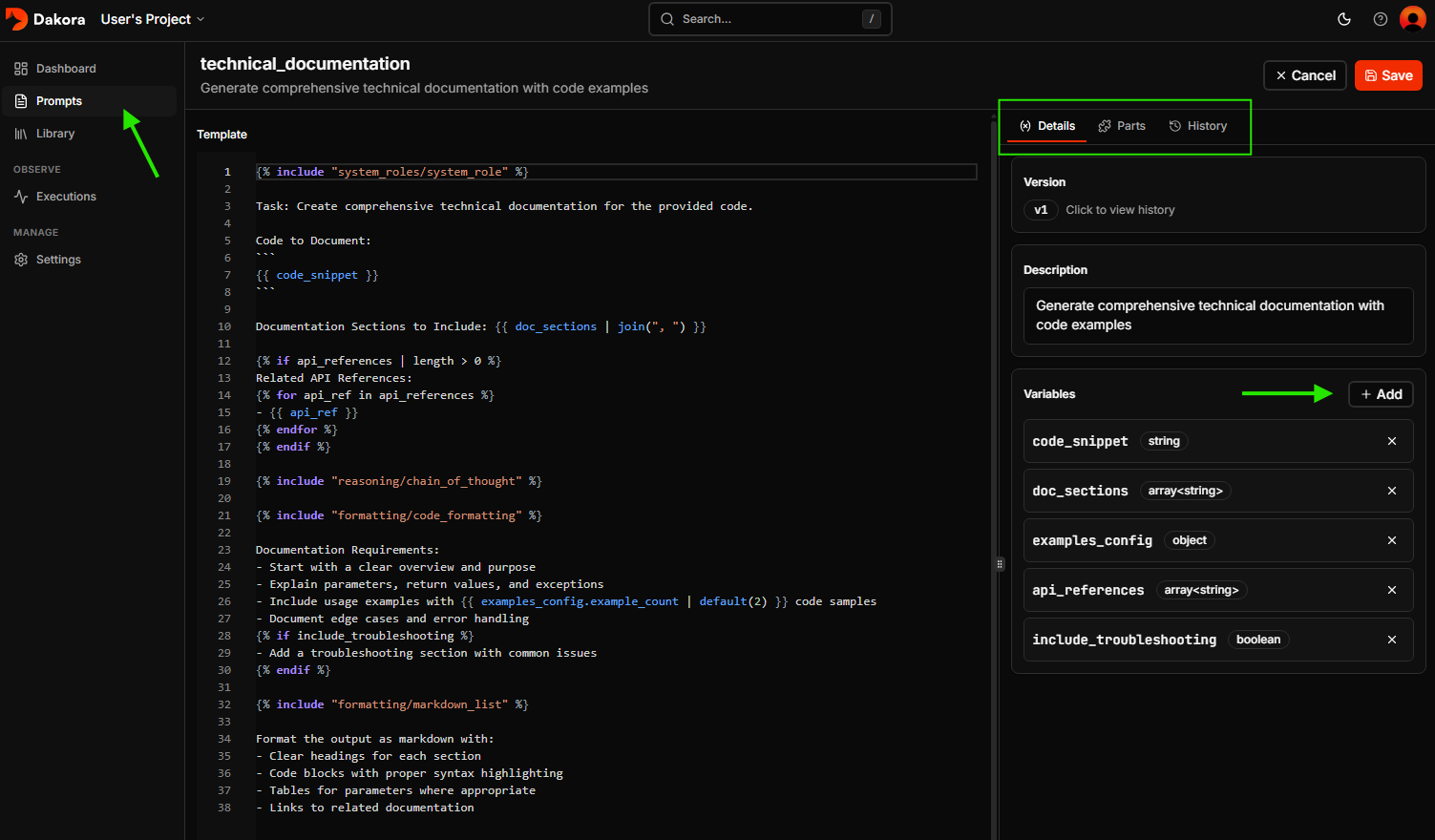
Create and update templates with the visual editor.
## Core Features
Create and version prompt templates with input schemas, Jinja2 syntax, and live preview. Roll back to any previous version instantly.
Build reusable snippets for system prompts, safety guidelines, and output formats. Include them in templates with `{% include 'part_id' %}`.
Monitor costs, token usage, and performance metrics. View trends over 24h, 7d, or 30d with interactive charts.
Inspect every LLM call with full conversation history, token counts, latency, and cost breakdown.
## Getting Started
1. Access [Dakora Studio](https://playground.dakora.io) and **Sign in** or **Sign up**
2. **Select a workspace and project** (defaults provision automatically on first sign-in)
3. **Explore sample templates** - your first project includes examples demonstrating best practices
Sample templates show input schemas, parts includes, and common patterns. Use them as starting points.
## Template Editor
Create and update templates with the visual editor.
 | Feature | Description |
| ------------------- | -------------------------------------------------------------------- |
| **Input Schema** | Define variables with types (string, number, boolean, array, object) |
| **Live Preview** | Render templates with sample inputs instantly |
| **Jinja2 Syntax** | Use conditionals, loops, and filters |
| **Version History** | Roll back to any previous version |
## Parts Library
Manage reusable snippets that can be included across templates.
```jinja theme={null}
{% include 'common_instructions' %}
You are helping {{ customer_name }} with their request.
{% include 'safety_guidelines' %}
```
**Common use cases:**
* System prompts shared across templates
* Safety guidelines and guardrails
* Output format specifications
* Reusable knowledge blocks
Full documentation on template syntax, input types, and advanced patterns
## Settings
### API Keys
Generate keys for programmatic access from your applications.
* Navigate to **Settings > API Keys**
* Keys are hashed at rest (shown only once when created)
* Maximum 10 keys per project
### Budget Controls
Set monthly spending limits and alerts.
* Configure budget amount in USD
* Set alert thresholds (e.g., 50%, 80%)
* Choose enforcement mode (alert-only or block)
Configure budgets and understand enforcement modes
## Keyboard Shortcuts
| Shortcut | Action |
| -------------- | -------------- |
| `Cmd/Ctrl + S` | Save template |
| `Cmd/Ctrl + P` | Toggle preview |
| `Cmd/Ctrl + /` | Toggle comment |
## Next Steps
Build your first template in 5 minutes
Track executions and analyze costs
| Feature | Description |
| ------------------- | -------------------------------------------------------------------- |
| **Input Schema** | Define variables with types (string, number, boolean, array, object) |
| **Live Preview** | Render templates with sample inputs instantly |
| **Jinja2 Syntax** | Use conditionals, loops, and filters |
| **Version History** | Roll back to any previous version |
## Parts Library
Manage reusable snippets that can be included across templates.
```jinja theme={null}
{% include 'common_instructions' %}
You are helping {{ customer_name }} with their request.
{% include 'safety_guidelines' %}
```
**Common use cases:**
* System prompts shared across templates
* Safety guidelines and guardrails
* Output format specifications
* Reusable knowledge blocks
Full documentation on template syntax, input types, and advanced patterns
## Settings
### API Keys
Generate keys for programmatic access from your applications.
* Navigate to **Settings > API Keys**
* Keys are hashed at rest (shown only once when created)
* Maximum 10 keys per project
### Budget Controls
Set monthly spending limits and alerts.
* Configure budget amount in USD
* Set alert thresholds (e.g., 50%, 80%)
* Choose enforcement mode (alert-only or block)
Configure budgets and understand enforcement modes
## Keyboard Shortcuts
| Shortcut | Action |
| -------------- | -------------- |
| `Cmd/Ctrl + S` | Save template |
| `Cmd/Ctrl + P` | Toggle preview |
| `Cmd/Ctrl + /` | Toggle comment |
## Next Steps
Build your first template in 5 minutes
Track executions and analyze costs