> ## Documentation Index
> Fetch the complete documentation index at: https://docs.dakora.io/llms.txt
> Use this file to discover all available pages before exploring further.
# Quick Start
> Get started with Dakora in 5 minutes. Create your API key, use starter templates, and render your first prompt.
Follow these steps to start optimizing your AI costs with Dakora.
Sign up at [Dakora Studio](https://playground.dakora.io) to get started.
Each project has its own templates, API keys, and cost analytics. It perfect for separating development, staging, and production environments.
Navigate to **Settings → API Keys** and click **New Key**. Give your key a name, set an expiration (or choose "Never"), and click **Create Key**.
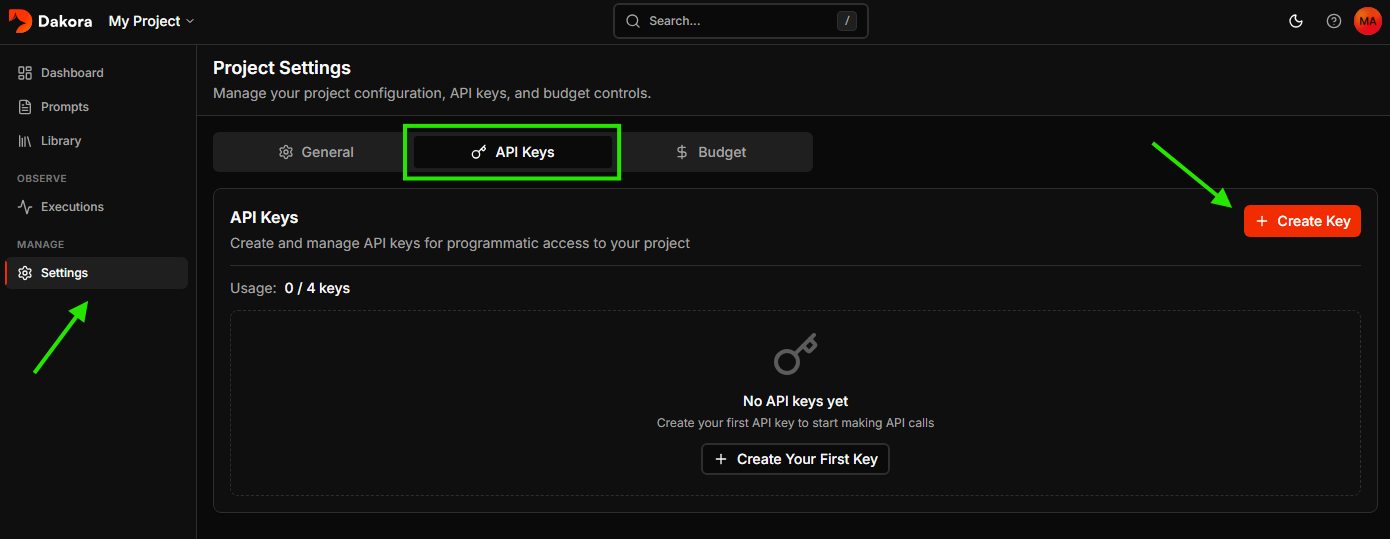 Copy your API key immediately - it's only shown once. Store it securely.
Every new project comes with starter templates to help you get going quickly.
Copy your API key immediately - it's only shown once. Store it securely.
Every new project comes with starter templates to help you get going quickly.
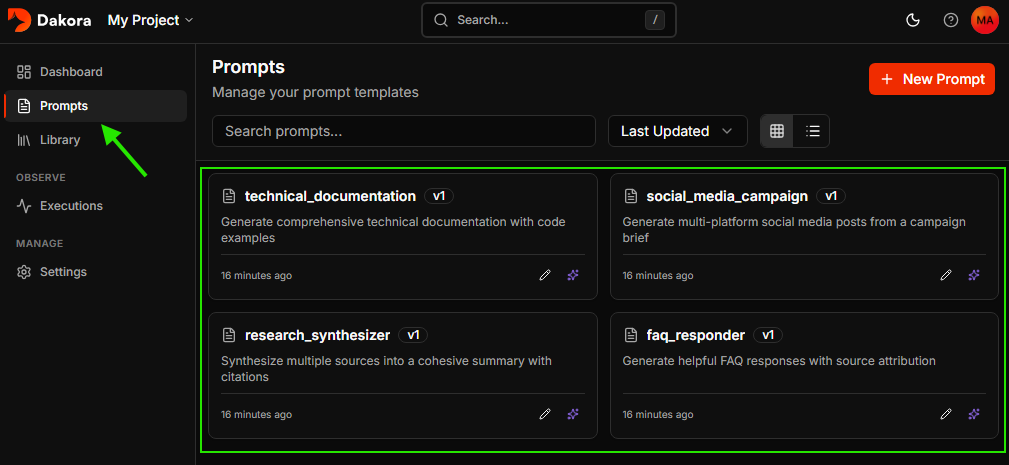 You can use these templates as-is, customize them, or create your own from scratch in the Studio.
Install the Dakora SDK and instrumentation packages:
```bash theme={null}
pip install dakora dakora-instrumentation
pip install opentelemetry-sdk opentelemetry-exporter-otlp-proto-http
pip install openai opentelemetry-instrumentation-openai
```
Make your API keys available as environment variables: `DAKORA_API_KEY` and `OPENAI_API_KEY` (via `.env` file or your preferred method).
Now set up instrumentation to track your LLM calls, then render a template and use it with your LLM:
```python theme={null}
import asyncio
import os
from opentelemetry.instrumentation.openai import OpenAIInstrumentor
# Instrument OpenAI before importing it
OpenAIInstrumentor().instrument()
from dakora import Dakora
from dakora_instrumentation.generic import setup_instrumentation
from openai import OpenAI
async def main():
# Initialize Dakora client
dakora = Dakora()
# Setup instrumentation to track executions
setup_instrumentation(
dakora_client=dakora,
service_name="my-app"
)
# Render the FAQ responder template
result = await dakora.prompts.render(
"faq_responder",
{
"question": "How do I reset my password?",
"knowledge_base": "Users can reset passwords via Settings > Security > Reset Password.",
},
)
# Use the rendered template with OpenAI (automatically traced)
client = OpenAI(api_key=os.getenv("OPENAI_API_KEY"))
response = client.chat.completions.create(
model="gpt-4o-mini",
messages=[{"role": "user", "content": result.text}],
)
print(response.choices[0].message.content)
await dakora.close()
asyncio.run(main())
```
The instrumentation automatically captures token usage, costs, and latency for every LLM call.
Check the [Dakora Studio executions](https://playground.dakora.io/project/default/executions) to see your trace with full analytics.
You can use these templates as-is, customize them, or create your own from scratch in the Studio.
Install the Dakora SDK and instrumentation packages:
```bash theme={null}
pip install dakora dakora-instrumentation
pip install opentelemetry-sdk opentelemetry-exporter-otlp-proto-http
pip install openai opentelemetry-instrumentation-openai
```
Make your API keys available as environment variables: `DAKORA_API_KEY` and `OPENAI_API_KEY` (via `.env` file or your preferred method).
Now set up instrumentation to track your LLM calls, then render a template and use it with your LLM:
```python theme={null}
import asyncio
import os
from opentelemetry.instrumentation.openai import OpenAIInstrumentor
# Instrument OpenAI before importing it
OpenAIInstrumentor().instrument()
from dakora import Dakora
from dakora_instrumentation.generic import setup_instrumentation
from openai import OpenAI
async def main():
# Initialize Dakora client
dakora = Dakora()
# Setup instrumentation to track executions
setup_instrumentation(
dakora_client=dakora,
service_name="my-app"
)
# Render the FAQ responder template
result = await dakora.prompts.render(
"faq_responder",
{
"question": "How do I reset my password?",
"knowledge_base": "Users can reset passwords via Settings > Security > Reset Password.",
},
)
# Use the rendered template with OpenAI (automatically traced)
client = OpenAI(api_key=os.getenv("OPENAI_API_KEY"))
response = client.chat.completions.create(
model="gpt-4o-mini",
messages=[{"role": "user", "content": result.text}],
)
print(response.choices[0].message.content)
await dakora.close()
asyncio.run(main())
```
The instrumentation automatically captures token usage, costs, and latency for every LLM call.
Check the [Dakora Studio executions](https://playground.dakora.io/project/default/executions) to see your trace with full analytics.
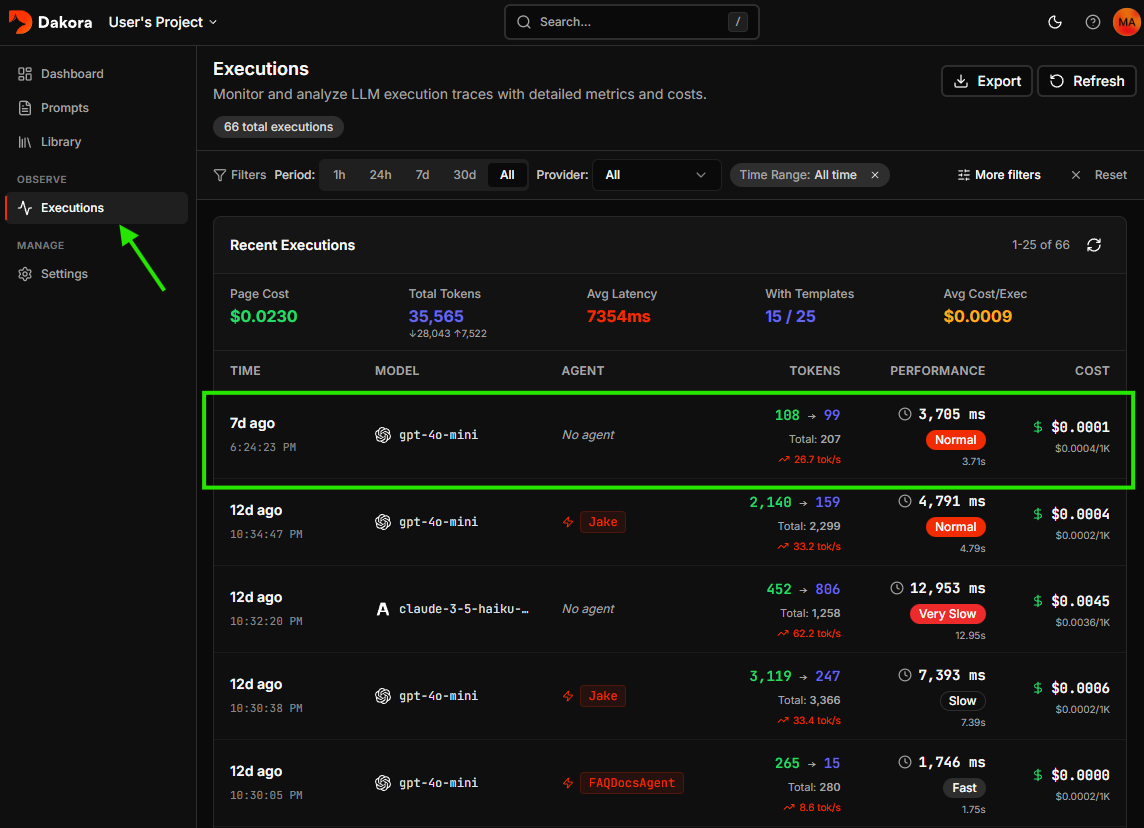 See token usage, costs per model, and identify optimization opportunities.
## Next Steps
Learn how to create and manage prompt templates
Test your templates with real inputs before deploying
Understand your execution logs and cost data
Set up spending limits and alerts
See token usage, costs per model, and identify optimization opportunities.
## Next Steps
Learn how to create and manage prompt templates
Test your templates with real inputs before deploying
Understand your execution logs and cost data
Set up spending limits and alerts