

Overview
Dakora’s budget feature helps you maintain control over LLM costs. Set spending limits at the project level, receive proactive alerts, and enforce budget caps to prevent overspending.Key Capabilities
Monthly Budgets
Set hard or soft spending limits per project
Real-time Alerts
Get notified before reaching budget thresholds
Flexible Enforcement
Choose between alert-only or hard budget blocks
Multi-Environment
Separate budgets for dev, staging, and production
Setting Up Budgets
Configure in Studio
- Navigate to Settings > Budget
- Set your monthly budget limit in USD
- Configure alert thresholds (e.g., notify at 80%)
- Choose enforcement mode: alert-only or hard limit
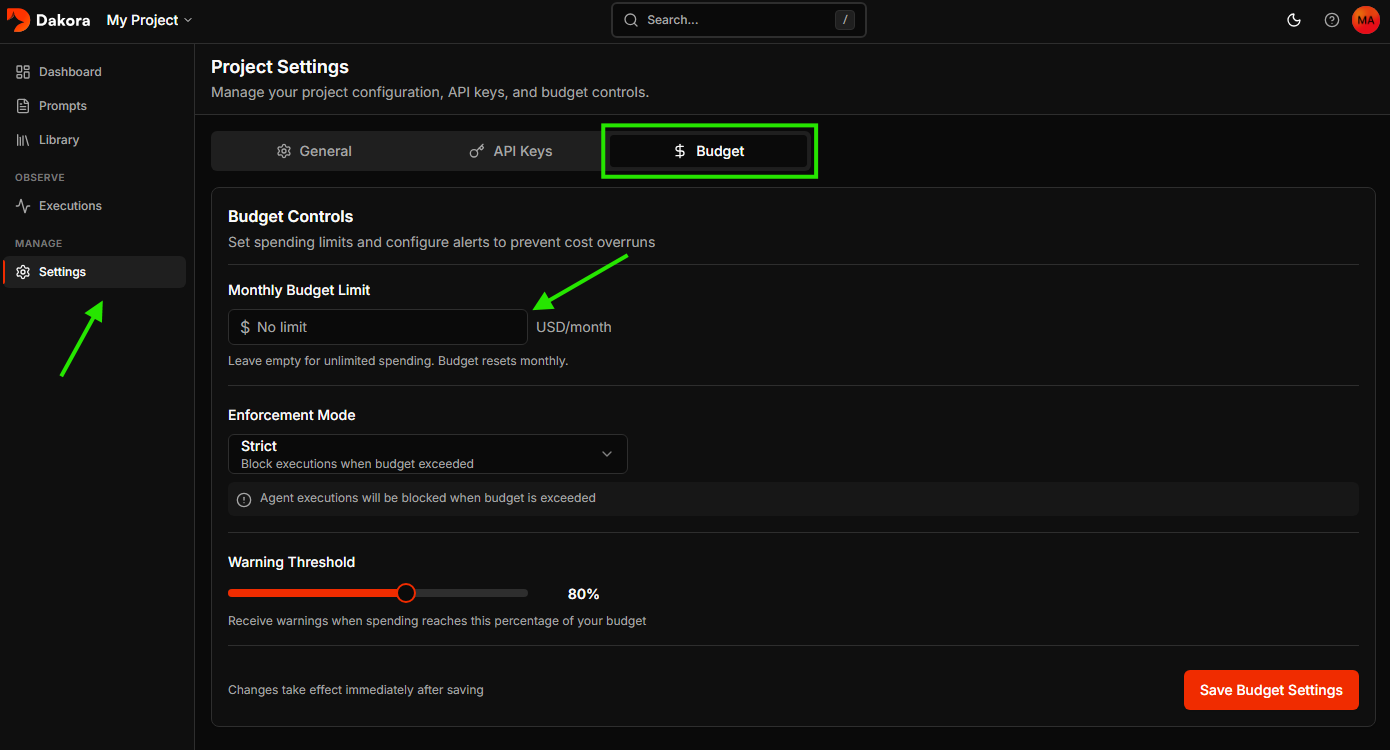
Budget Configuration Options
Budget Alerts & Enforcement
Alert System
When spending approaches your configured threshold:- Email notification sent to project owners
- Dashboard warning displayed in Studio
- API response includes budget status in metadata
Enforcement Modes
Alert-only mode: Continue executions but send notifications Block mode: Reject new execution requests once budget is exceededBest Practices
Start with Alert Mode
Start with Alert Mode
Begin with alert-only enforcement to understand your spending patterns
before enabling hard limits that could disrupt service.
Set Multiple Thresholds
Set Multiple Thresholds
Configure alerts at 50% and 80% to give yourself adequate time to react
before hitting the budget limit.
Use Environment-Specific Projects
Use Environment-Specific Projects
Create separate projects for development, staging, and production
with appropriate budget limits for each environment.
Next Steps
Observability
Track execution logs and traces
Templates
Optimize your prompts for efficiency